


How to Create a Schedule on a 7-Day Programmable Timer
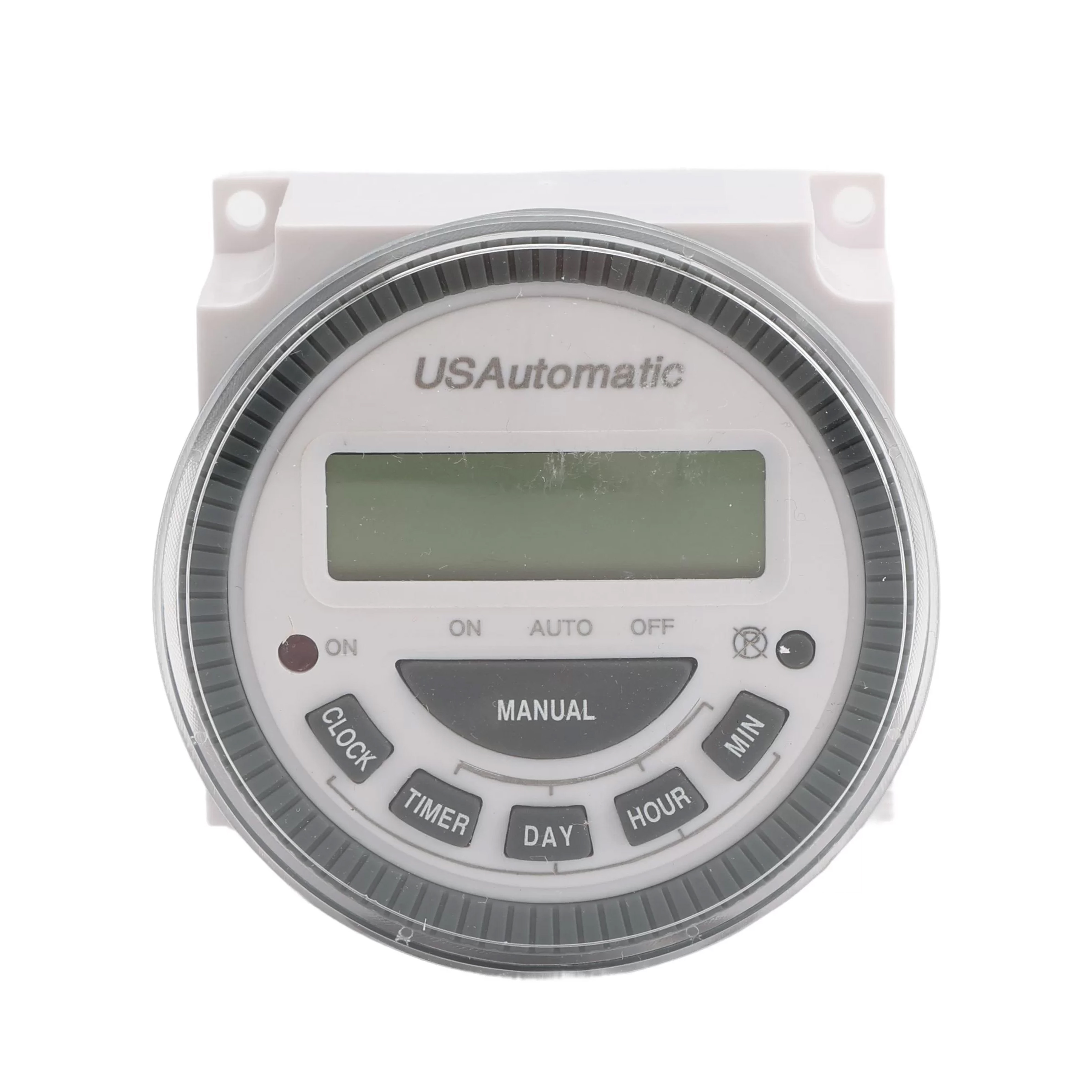
Using a 7 Day Programmable Timer on your USAutomatic Gate Opener can completely automate your hands-free gate opener. This will allow the gate system to open and close on a specific schedule. For example, if your site is open from 7 AM to 6 PM, you can program the gate to remain open throughout those hours. Once the closing time has been reached, the gate will automatically shut.
This guide will walk you through how to program the timer to be set on a schedule similar to the example outlined above. When put on a timer, the gate will not close from outside sources such as remotes, keypads, or other means of operation except for an emergency override until the scheduled closing time is reached.
You can view the 7 Day Timer's full manual here:
7 Day Programmable Timer ManualSteps for Programming the 7 Day Timer
Set the Timer to Auto
- At the bottom of the screen, above the selected timer function, there is a line. Under that line, check whether it says "AUTO". If it does not say "AUTO", press the MANUAL key until it says "AUTO."
Verify the Clock is Set
- The 7 Day Timer is based on a 24-hour system. Check that the day and time shown on the timer are accurate. If the correct time is not displayed, set the timer by following the instructions in this article: How to Set the Clock on a 7 Day Programmable Timer
Set the “1 On” Time
The "1 On" time is when the gate opens and remains open. You can set additional schedules beyond the first by pressing the TIMER key repeatedly until it displays "2 On", "3 On", and so forth.
- Select the TIMER key: The timer should display “1 On --:--”.
- Press the DAY key until your desired days are shown. The timer has 15 different day combinations.
- Press the HOUR and MINUTE keys to set the opening times you would like.
Set the “1 Off” Time
The "1 Off" Time is when the gate closes and stops being held open by the timer. The gate opener system's auto-close timer will count down and close the gate once this time has passed.
- Press the TIMER key: The timer should display “1 Off --:--”.
- Press the DAY key until the desired days are displayed: Ensure you select the same days as the "1 On" time. If you don't, the schedule will not work!
- Press the HOUR and MINUTE keys to select the closing time you would like.
- Press the TIMER key and then press the CLOCK key. Your timer will now open and close the gate on a set schedule.
Important Note
When setting up your programmable timer, if the "1 On" time has already passed, the timer will not open the gate until the next scheduled day. If you would prefer the timer to begin holding the gate immediately, set the "1 On" time to be a couple of minutes in the future so that the scheduled time will pass and the gate opener will be triggered to open. Once time has passed, you can go back to the "1 On" Setting and set the time to your preferred opening time. You will then be on schedule.
Shop the 550015 7 Day Programmable TimerContact us for Further Assistance!
If you could use some further guidance, give our expert sales team a call. We're willing to walk you through the steps of programming your timer or any other issues you may be having with your USAutomatic Gate Opener Systems.
Contact Us